
Marketplace HELP guide
How to use the extension. Last updated October 13, 2026, for version 1.4.4.
1. What Marketplace HELP is
Marketplace HELP is a free extension for the Chrome web browser. It adds a few tools to Facebook Marketplace that make it easier to compare listings while you shop: marks for the listings you like (or don’t), a short list that stays at the front, saved searches, private notes, a large photo viewer, and a few helpful labels on listings you’ve opened.
Marketplace HELP is not affiliated with Meta or Facebook.
Everything it remembers stays in your own Chrome browser on this computer. Nothing is uploaded, there is no account to create, and nobody else can see your marks or notes.
2. Installing it
- Install Marketplace HELP from the Chrome Web Store.
- Open Facebook Marketplace in Chrome. If you already had a Marketplace page open, reload it.
- The Marketplace HELP buttons now appear right on the listings.
Don’t look for a Marketplace HELP icon next to Chrome’s address bar. All of the controls appear on the Facebook Marketplace page itself, on the listings, under the search box, and on an open listing.
3. The three marks on a card
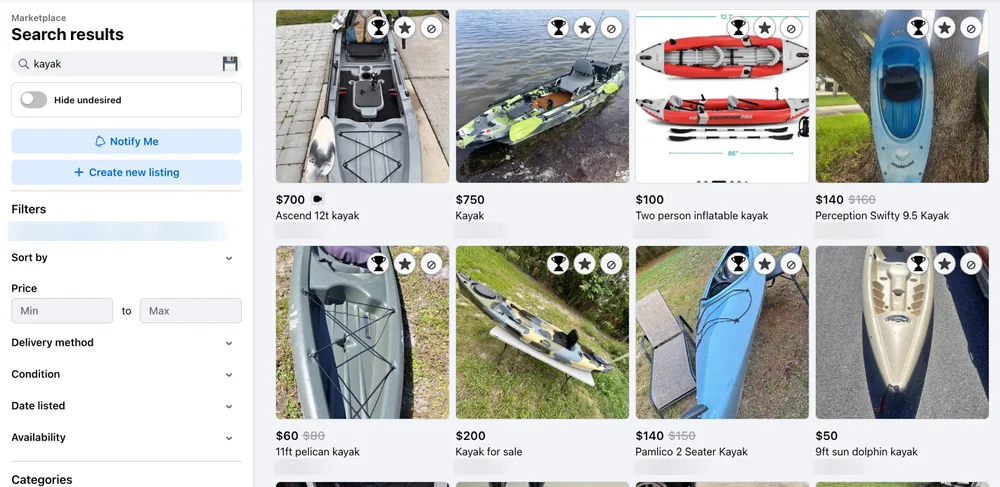
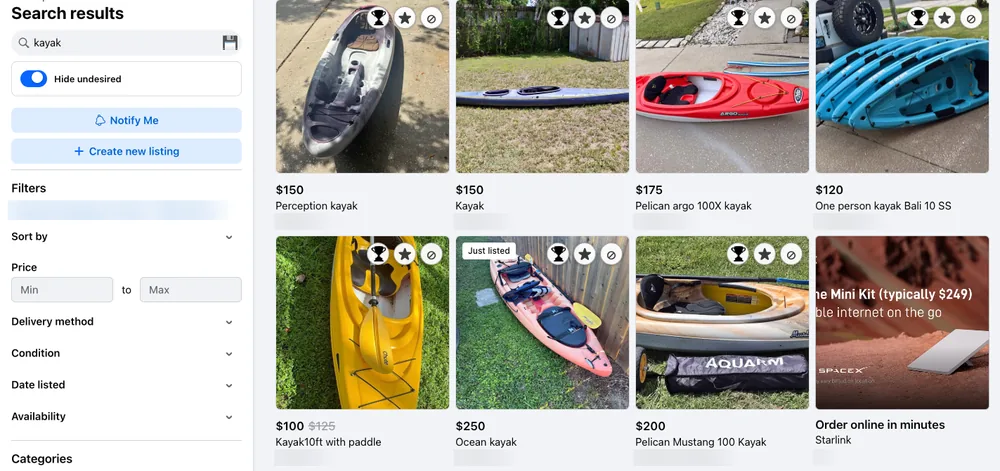
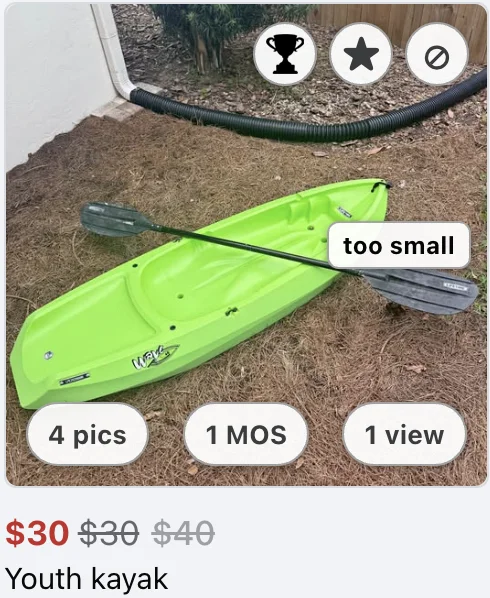
Each listing in your search results gets a small row of three round buttons in the top-right corner of its photo. From left to right:
- Trophy (🏆): finalist. Puts the listing on your short list. Finalists move to the front of the results (see the next section). The trophy lights up in gold when it’s selected.
- Star (★): favorite. Marks a listing you like. The listing photo gets a gold glow around its inside edge so it stands out.
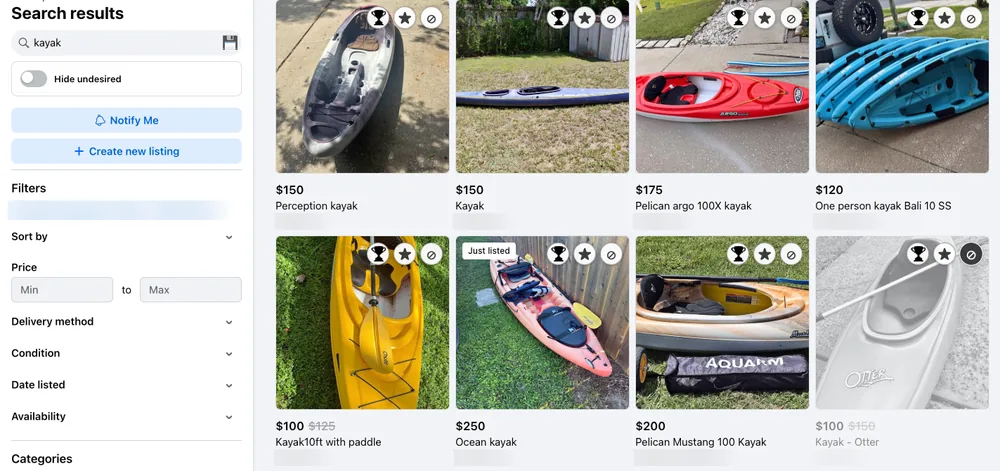
- Slashed circle (⊘): undesired. Marks a listing you’re not interested in. The listing turns gray and faded, but it stays where it was and you can still click it to open it.


How the marks work
- A listing can have only one mark at a time. Choosing a different mark replaces the old one.
- To remove a mark, click the selected button again.
- The same three buttons also appear next to My Notes when you open a listing, so you can mark it from there too.
- Marks are remembered for that particular listing, so they’re still there after a new search, after you reload the page, and after you close and reopen Chrome.
- If you have Marketplace open in more than one tab, a mark you make in one tab shows up in the others too.
4. Finalists and favorites move to the front
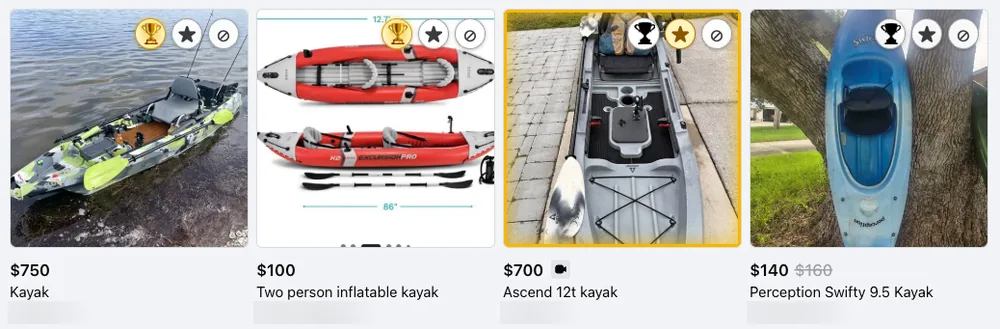
Every listing you mark with the trophy is moved to the beginning of the search results, cheapest first. Right after the finalists come the listings you starred as favorites, also cheapest first. Everything else stays in Facebook’s order after them. That way your short list is the first thing you see, with the best price at the top.
If Marketplace HELP can’t tell a listing’s price, it goes at the end of its group.
One exception: sometimes Facebook controls exactly where a listing sits on the page, for example in a special row or a layout that isn’t a normal grid of results. In that case Marketplace HELP leaves the listing where it is rather than risk hiding it. It is still marked as a finalist or favorite.
5. When a finalist is sold or taken down
When you mark a listing with the trophy, Marketplace HELP remembers its title and the address of its main photo, so you can still recognize it if the listing disappears later. It keeps only the title, not the price or the seller’s town.
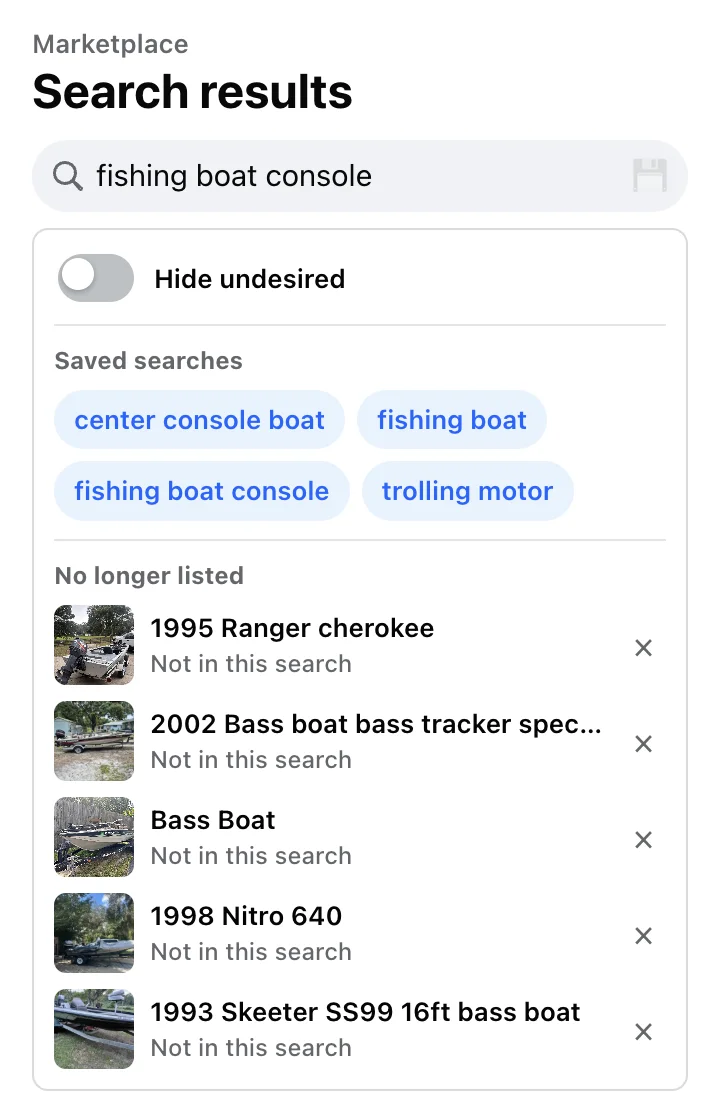
If a finalist goes away, it shows up in a list headed No longer listed, in the panel under the Marketplace search box, below your saved searches. Each row shows a small photo, the title, and one of these labels:
- Sold: Facebook shows the listing as Sold or Pending.
- No longer listed: Facebook says the listing isn’t available any more.
- Not in this search (in gray): the finalist isn’t among the results on the page you’re looking at. It may simply belong to a different search. Marketplace HELP checks the listing’s Facebook page in the background, and if Facebook says it’s gone, the label changes to No longer listed.
Your most recently picked finalist is at the top. Click a row to open that listing. Click the × at the end of a row to remove it from your finalists; that also deletes the title and photo address Marketplace HELP saved for it.
The list only appears when there is something in it.
6. Hide undesired
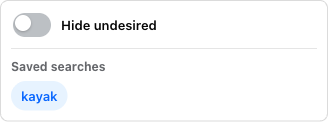
Under the Marketplace search box there’s a small panel with a switch labeled Hide undesired. It sits above your saved searches.
- Off (gray): listings you marked with the slashed circle stay in the results, gray and faded.
- On (blue): every listing you marked with the slashed circle is hidden from the results.
The switch stays on until you turn it off. It stays on after you reload the page, open a new search, or restart Chrome, and it applies to every open Marketplace tab.
Turning the switch on or off never changes your marks. Your slashed-circle listings are still marked, just out of sight, and they come back as soon as you switch it off.
7. Saving a search
- Type what you’re looking for in the Marketplace search box. If you like, also set a minimum or maximum price in Marketplace’s own price filter.
- Click the save icon (💾) at the right end of the search box. The phrase is saved, along with the price range if you set one.
- Your saved phrases appear under Saved searches, just below the Hide undesired switch. A saved price range is shown after the phrase, for example kayak · $100–$500, kayak · $100+, or kayak · up to $500.
- Click a saved phrase any time to run that search again, with its price range, without retyping anything.
If the search box is empty, the save icon uses the phrase from the search you’re currently looking at. The icon is dimmed when that phrase is already saved with the same price range; clicking it then just scrolls the list to the saved phrase.
Each phrase is saved only once. If you search a saved phrase with a different price range, the save icon offers Update price range, and clicking it replaces the old range.
If you type a saved phrase into the search box yourself, Marketplace HELP applies its saved price range for you. It does this once per browsing session, so if you then clear or change the price filter, your choice sticks.
There isn’t a button to delete a single saved search yet. Saved searches are removed if you uninstall the extension.
8. Notes on a listing
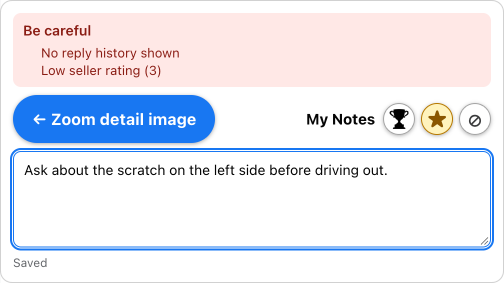
When you open a listing, a My Notes bar appears just below the listing’s title and price. Type anything you want to remember, such as questions for the seller, measurements, or how it compares to another listing.
- You don’t need a save button. Your note saves on its own a moment after you stop typing, and again when you click away. A small “Saved” message confirms it.
- The note belongs to that one listing. The next time you open the listing, your note is there.
- To remove a note, delete all of its text.
When a listing has a See more link on its description, Marketplace HELP clicks it for you so the full description is showing.
9. Listing note: a short tag on the photo
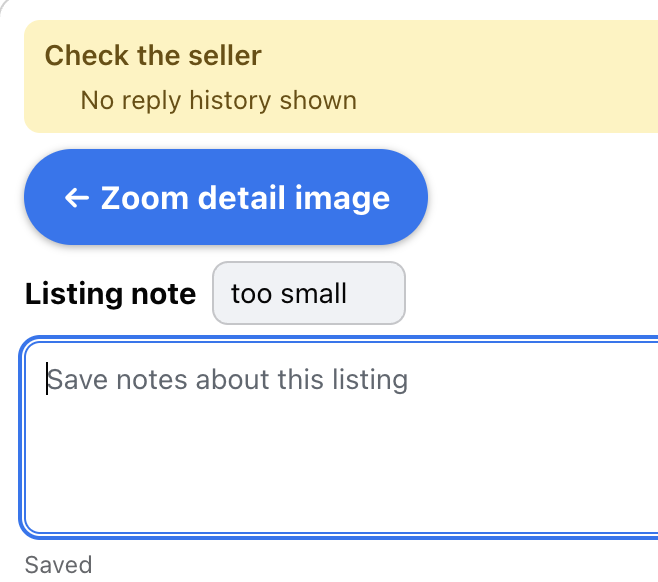
A Listing note is a tiny label, up to 10 characters, that shows on the listing’s photo in the search results. Use it for something you want to see at a glance while scrolling, such as Call Tue, Too far or Offer 300.
Adding one
- Open the listing.
- In the My Notes bar, find the Listing note box. It sits just below the Zoom detail image button and the trophy, star and slashed-circle buttons, above the larger My Notes box.
- Type up to 10 characters. The box won’t accept more, and spaces at the start or end are dropped.
Like My Notes, it saves on its own a moment after you stop typing, and again when you click away, and the “Saved” message confirms it.
Where it shows
On that listing’s card in the search results, the note appears as a small white tag with bold dark text, on the right edge of the photo, halfway down. It shows on every card for that listing, in every open Marketplace tab, until you change or clear it. Very small photos (under about 100 pixels across or tall) don’t show the tag. The tag appears only on cards in the results, not on the open listing itself.
Changing or clearing it
Open the listing again and edit the Listing note box. To remove the tag, delete all of the text in the box.
How it differs from My Notes
- My Notes is for longer notes, and you see it only when you open the listing.
- Listing note is limited to 10 characters, and you see it on the card without opening the listing.
The two are saved separately. Clearing one doesn’t affect the other, and neither depends on whether the listing is marked as a finalist, favorite or undesired.
10. Zoom detail image
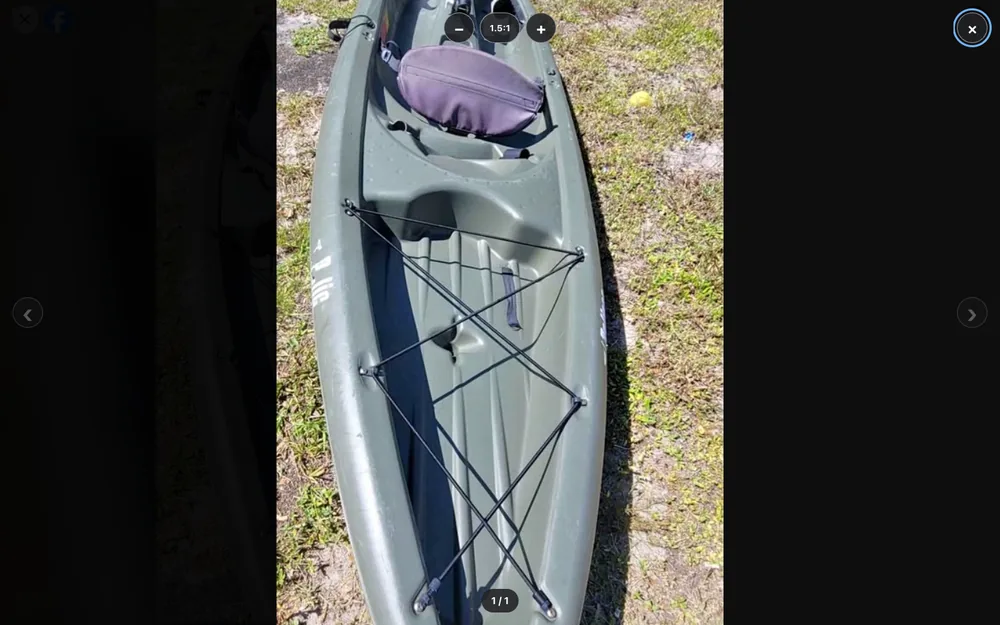
On the left end of the My Notes bar is a blue button, ← Zoom detail image. Click it to open the listing’s photos in a full-screen viewer so you can look closely at condition, labels, and wear. Clicking a photo on the listing opens the same viewer.
| To do this | Do this |
|---|---|
| Zoom in or out | Roll the mouse wheel, press + or - on the keyboard, or click the + and − buttons at the top |
| Move around a zoomed photo | Click and drag the photo |
| Zoom in quickly, or back out | Double-click the photo |
| See how far you’re zoomed in | Look at the button between − and +. It shows the zoom, such as 2:1. |
| Go back to normal size | Click that zoom button (it returns to 1:1), or press 0 |
| See the next or previous photo | Press the ← and → arrow keys, or click the arrows on the left and right sides of the screen |
| Close the viewer | Press Esc, or click the × in the top-right corner |
Photos can be zoomed up to five times their normal size. The counter
at the bottom shows which photo you’re on, such as 2 / 7.
11. The badges on a card
After you’ve opened a listing once in this browser, its card in the search results shows three small labels along the bottom of the photo:
- Bottom left: number of photos, such as 3 pics.
- Bottom center: how long it has been listed, such as 6 HRS.
- Bottom right: how many times you’ve opened it, such as 1 view or 2 views. This counts your visits only, not other shoppers’.
Listings you haven’t opened yet don’t have these labels.
Reading the listed time
| Label | Means listed about |
|---|---|
| NOW | Less than a minute ago |
| 45 MIN | 45 minutes ago |
| 6 HRS | 6 hours ago |
| 4 DYS | 4 days ago |
| 2 WKS | 2 weeks ago |
| 3 MOS | 3 months ago |
| 1 YRS | 1 year ago |
The listed time keeps counting up. If you come back to a saved search a few days later, a listing that said 2 DYS will say 5 DYS, so it’s easy to tell what’s new and what has been sitting for a while.
A listing you opened with an older version of Marketplace HELP may show a plus sign, such as 2+ WKS. The plus means “more than”: more than two weeks.

12. Price changes
Marketplace HELP remembers the last price it saw for each listing, both on cards in the search results and on listings you open. If the price is different the next time you see that listing, the price is highlighted:
- Price went down: the price is shown in dark green bold. Hover over it to see “Price dropped”.
- Price went up: the price is shown in red bold, with the previous price crossed out beside it, such as $450
$400. Hovering shows “Was $400”.
The colors show only for that change. While you stay on the page the highlight remains, but after a reload, or the next time you see the listing at the same price, the price looks normal again. The first time you see a listing there’s nothing to compare against, so its price looks normal. “Free” counts as a price of $0.
13. The seller caution panel
When you open a listing, a colored panel may appear at the top of the My Notes bar, above your note. It points out seller details that are worth a second look.
What can make it appear
- The seller’s Facebook account is new. Facebook shows it joined this year, or six months ago or less.
- No reply history is shown. The listing doesn’t show anything about how the seller responds to messages.
- No rating is shown, or the rating is below 4 out of 5.
- The seller has 5 or more other listings. This may be a dealer rather than a private seller.
Each reason that applies is listed in the panel.
What the colors mean
- Check the seller (yellow): one of the reasons above applies.
- Be careful (red): two or more reasons apply, or the seller has 5 or more other listings.
- The panel reads only what Facebook already shows on the listing page.
- It saves nothing about the seller: no name, no profile, no photo.
- It is not advice and not a judgment about a person. It’s only a reminder to look more carefully. If no panel appears, that does not mean the seller is trustworthy.
The panel only appears when the listing shows when the seller joined Facebook. If that date isn’t visible, Marketplace HELP has nothing to go on, so some listings will never show a panel.

14. The loading bar
While a Marketplace page is loading, or while Marketplace adds more results as you scroll, a thin strip appears across the very top of the window. It has a blue progress bar and a short message such as “Marketplace HELP waiting for page to load…”. When everything is ready it says “Marketplace HELP ready” and disappears on its own.

15. Where your information is kept
Marketplace HELP keeps everything in Chrome’s own storage for extensions, on this computer, in the Chrome profile you’re using:
- Your marks (finalist, favorite, undesired)
- The order you picked your finalists
- The last price seen for each listing
- The title and photo address of each finalist, so a sold or removed finalist can still be recognized
- Your notes
- Your listing notes (the short tags on listing photos)
- Your saved searches and their price ranges
- Whether Hide undesired is on or off
- Photo counts, view counts, and listed times for listings you’ve opened
There is no account, no server, and no tracking or analytics. Nothing is sent to the developer or anyone else.
Removing a mark, clearing a note, or clearing a listing note deletes it. Removing a mark doesn’t delete a listing note; clear the Listing note box to remove it. Removing a finalist mark also deletes the title and photo address saved for it. Uninstalling the extension deletes everything it stored, including listing notes, saved searches, counts, listed times, and remembered prices.
For the full details, read the Marketplace HELP privacy policy.
16. Troubleshooting
I don’t see any Marketplace HELP buttons
Reload the Marketplace page. The extension only works on Facebook
Marketplace pages (addresses starting with
www.facebook.com/marketplace), so it won’t appear
elsewhere on Facebook. Also remember there is no toolbar button; the
controls are on the listings themselves.
A card has no photo, view, or listed-time labels
You haven’t opened that listing yet in this browser. Open it once and the labels appear when you return to the results. Very small cards may not show the labels.
No caution panel appears on a listing
That listing doesn’t show when the seller joined Facebook, so there’s nothing to check. Remember that no panel doesn’t mean the seller is trustworthy.
A finalist didn’t move to the front
Facebook is controlling where that listing sits, so Marketplace HELP left it in place on purpose rather than risk hiding it. It is still marked as a finalist.
A finalist says “Not in this search”
That finalist isn’t among the results on the page you have open, usually because you found it in a different search. It is still a finalist. If you no longer want it, click the × next to it. See When a finalist is sold or taken down.
My marks are gone on a different computer
That’s by design. Marks, notes, and saved searches stay on the computer and Chrome profile where you made them. They are never uploaded, so they don’t follow you to another computer or another Chrome profile.
17. Contact
Questions or problems? Email gmeyer3@gmail.com.